Physical Address
304 North Cardinal St.
Dorchester Center, MA 02124
Physical Address
304 North Cardinal St.
Dorchester Center, MA 02124

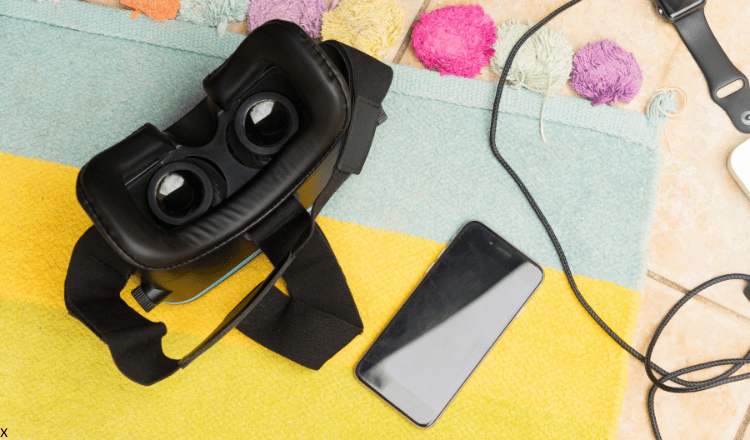
There are a lot of questions surrounding the Oculus Quest 2. But one of the most common is whether or not you could play Oculus Quest 2 offline.
In today’s world, there is a very small chance you will be somewhere with your headset but out of WiFi. However, let us still consider the two main choices you have.
The first choice is to download games you can play offline, which you will see in this article below.
Second, a more obvious choice is to watch already downloaded movies, videos, and music content from YouTube, Netflix, and other platforms more comfortably.
A lot of issues can be resolved by keeping the Oculus app up to date as most of the issues that VR gamers face are resolved in the updated version of the application.
You have two ways to approach this, you can either choose to manually check the Oculus application library for recent updates. If you are using an Apple phone, you can get recent versions on iOS while Android users can get theirs on the Play store.
Alternatively, you can also go through the long process of uninstalling the Oculus App and re-installing it from the application library.
Switching between networks to see which one will allow the pairing of your phone and Quest 2 headset could also help, especially if you use more than one wireless network to gain access to the web.
Another way to fix Quest 2 pairing issues is by opening the webpage on your phone browser, if it loads too slowly or does not load at all, then you might want to try restarting your router.
Restarting your router can help you resolve connection problems and unexpected configuration issues.
If it still doesn’t work, you should reach out to your network service provider.
Pairing issues can also be resolved by manually permitting particular Bluetooth connections.
It might not even be a direct Bluetooth issue but a permission issue. You may have your Bluetooth connect and still be unable to pair with your headset if you don’t permit it to do so.
Since this issue is predominant amongst iPhone users, you can simply resolve it by following the steps below:
Pairing your Oculus Quest 2 headset and your phone requires you to switch on both your Bluetooth and location. If either of them is turned off, the pairing will not go through.
If this is the case, turn on the defaulting option and restart the pairing process.
Restarting your Oculus Quest 2 headset might help you to counter pairing issues. Before you stress yourself over what might be the cause of the pairing difficultly, try to restart your headset. Here is a simple way to do it: there is a power button on the right side of your headset, hold it down gently until the shutdown menu pops up, from there, you can either select the option to shut down the headset and restart it or simply using the reboot option.
The same goes for your phone as restarting it can also resolve a lot of software issues (including Oculus pairing issues) and there are two ways to go about this. You can either choose to switch your phone off and switch it on while waiting for a few minutes in between. Alternatively, you can also simply restart your phone. Either way, the most important thing is that the issue gets sorted out.
After rebooting your devices, try pairing them together again and see if it works. If it doesn’t, there are still a few things that you can do.
The pairing of your Quest 2 headset and Phone App is a wireless connection that requires both devices to be on the same wireless network.
To be sure that your phone and headset are on the same page, check through with the following steps:
Do you know that the pairing issue that you are faced with might be due to the use of an incompatible mobile device for your headset? Yes, it’s quite possible.
You cannot be too sure, hence we suggest that you get an alternative device, and try pairing your headset with it to be sure of where the problem is coming from, who knows? It just might be it.
Don’t worry, you won’t lose your data while pairing with a new mobile device. Moresi, you won’t necessarily be needing the App after pairing, so there is nothing to be scared about as long as you can pair your devices.
So there we go on our simple ways of fix Oculus Pairing Issues. They aren’t so hard to comprehend, are they?
If the pairing issues don’t improve even after using all our simple recommended tricks, check if your phone is not connected to some other device. It is a known fact that you will not be able to pair with your headset while your mobile device is connected to another Bluetooth device.
If there is still no improvement, then you might want to check your Oculus headset itself for hardware issues that could be the cause of the pairing issue.
We do hope that you found this helpful.